


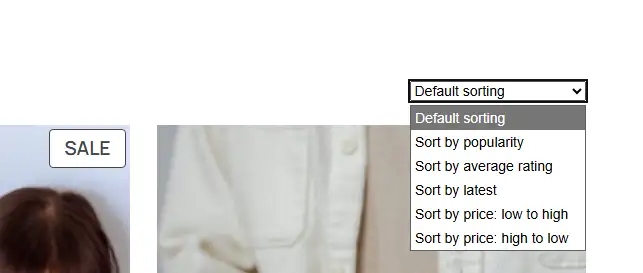
WooCommerce’s default sorting dropdown is a cluttered mess. Here’s what it usually looks like:
If you just want the quick fix, scroll straight to the bottom for the final code block.
Stop messing with the labels only
If you just want to remove or rename options in that dropdown, you’d think hooking into woocommerce_catalog_orderby is enough. You can drop this into your functions.php:
add_filter( 'woocommerce_catalog_orderby', 'r802_lab_update_sort_dropdown_labels_and_order' );

function r802_lab_update_sort_dropdown_labels_and_order( $options ){

    unset( $options[ 'popularity' ] ); // Sort by popularity
    unset( $options[ 'menu_order' ] ); // Default sorting
    unset( $options[ 'rating' ] ); // Sort by average rating
    //unset( $options[ 'date' ] ); // Sort by latest
    //unset( $options[ 'price' ] ); // Sort by price: low to high
    //unset( $options[ 'price-desc' ] ); // Sort by price: high to low
    $options[ 'price' ] = 'Sort by price xxx'; // rename

    return $options;

}
Here’s the reference for those internal slugs:
popularity– Sort by popularitymenu_order– Default sortingrating– Sort by average ratingdate– Sort by latestprice– Sort by price: low to highprice-desc– Sort by price: high to low
The problem? That filter only changes the UI labels. If you rename ‘Sort by latest’ but don’t change the underlying query, your products will still load in the original default order when a user hits the page, even if the dropdown says otherwise.
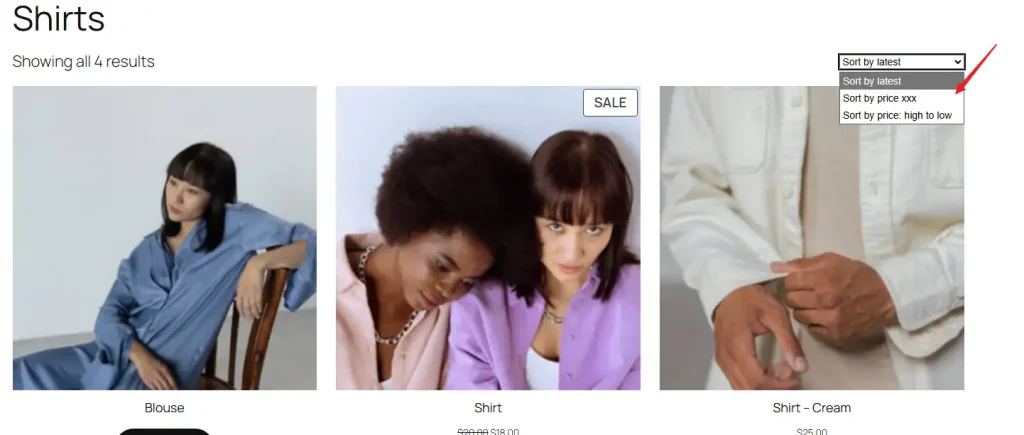
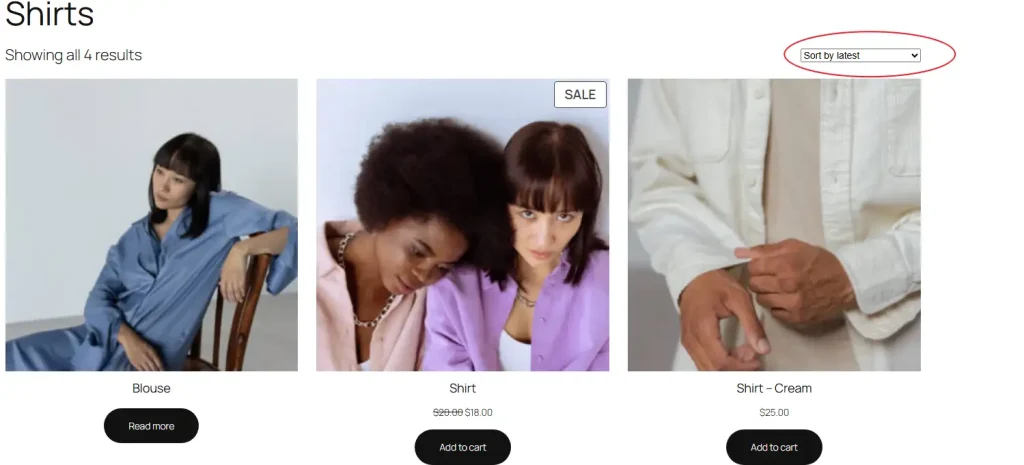
The user is stuck with the wrong view until they manually toggle the sort—a massive UX failure.
The actual way to force the sort order
To change how the products are actually queried, you have to hit woocommerce_get_catalog_ordering_args.
add_filter( 'woocommerce_get_catalog_ordering_args', 'r802_lab_force_default_sort_by_latest' );
function r802_lab_force_default_sort_by_latest( $args ) {

    // This only takes effect when the user has not manually selected a sort order, i.e., when the URL in the address bar does not end with a suffix like /?orderby=price.
    if ( ! isset( $_GET['orderby'] ) ) {
        $args['orderby'] = 'date';
        $args['order']   = 'DESC';
    }

    return $args;
}
Now, when you land on the page with a clean URL, the sorting actually works as intended.


Need specific rules per category?
If you want to get granular—like setting different default sorts and dropdown options for individual categories—do this:
// Control the dropdown labels per category
add_filter( 'woocommerce_catalog_orderby', 'r802_lab_category_orderby_text', 99 );
function r802_lab_category_orderby_text( $options ) {
    if ( is_product_category( 'shirts' ) ) {
        return array(
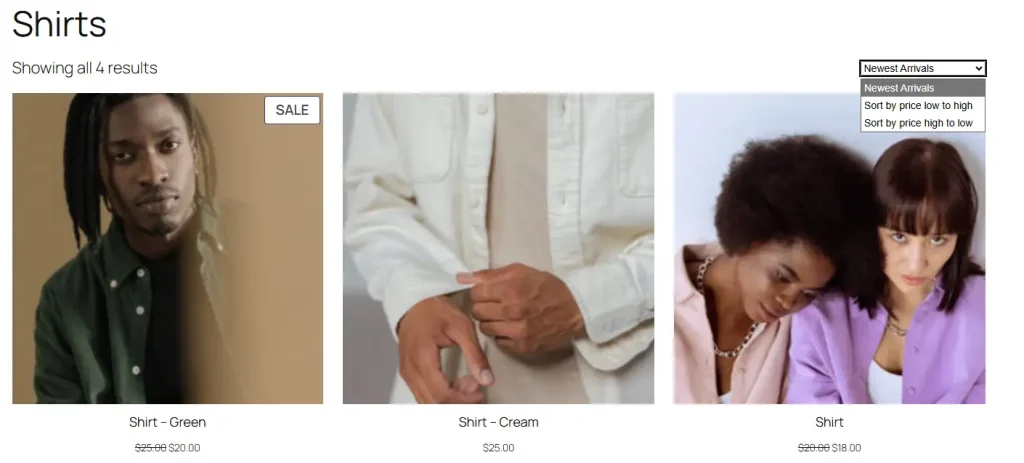
            'date'       => 'Newest Arrivals',
            'price'      => 'Sort by price low to high',
            'price-desc' => 'Sort by price high to low',
        );
    }

    if ( is_product_category( 'accessories' ) ) {
        return array(
            'title'      => 'Sort alphabetically',
            'price'      => 'Sort by price low to high',
            'price-desc' => 'Sort by price high to low',
            'date'       => 'Newest Arrivals',
        );
    }
    return $options;
}

// Force the actual query to match your custom labels
add_filter( 'woocommerce_get_catalog_ordering_args', 'r802_lab_force_custom_orderby', 99 );
function r802_lab_force_custom_orderby( $args ) {

    if ( ! isset( $_GET['orderby'] ) ) {
        if ( is_product_category( 'shirts' ) ) {
            $args['orderby'] = 'date';
            $args['order']   = 'DESC';
        } elseif ( is_product_category( 'accessories' ) ) {
            $args['orderby'] = 'title';
            $args['order']   = 'ASC';
        }
    }


    if ( isset( $_GET['orderby'] ) && $_GET['orderby'] === 'alphabetical' ) {
        $args['orderby'] = 'title';
        $args['order']   = 'ASC';
    }

    return $args;
}
This code cleans up the dropdowns to show only what matters, renames your labels, and forces the DB query to respect your default sorting logic.

The TL;DR for the lazy
If you want total control, remember the two-step process. Changing the label is useless if you don’t change the execution.
woocommerce_catalog_orderby: Use this to hide or rename what the user clicks.woocommerce_get_catalog_ordering_args: Use this to force the database to actually sort the way you promised the user.